There was a problem loading the comments.

TMS - Cutting Preshow

Support Portal  »  Manager Knowledge Articles  »  Viewing Article

  Print
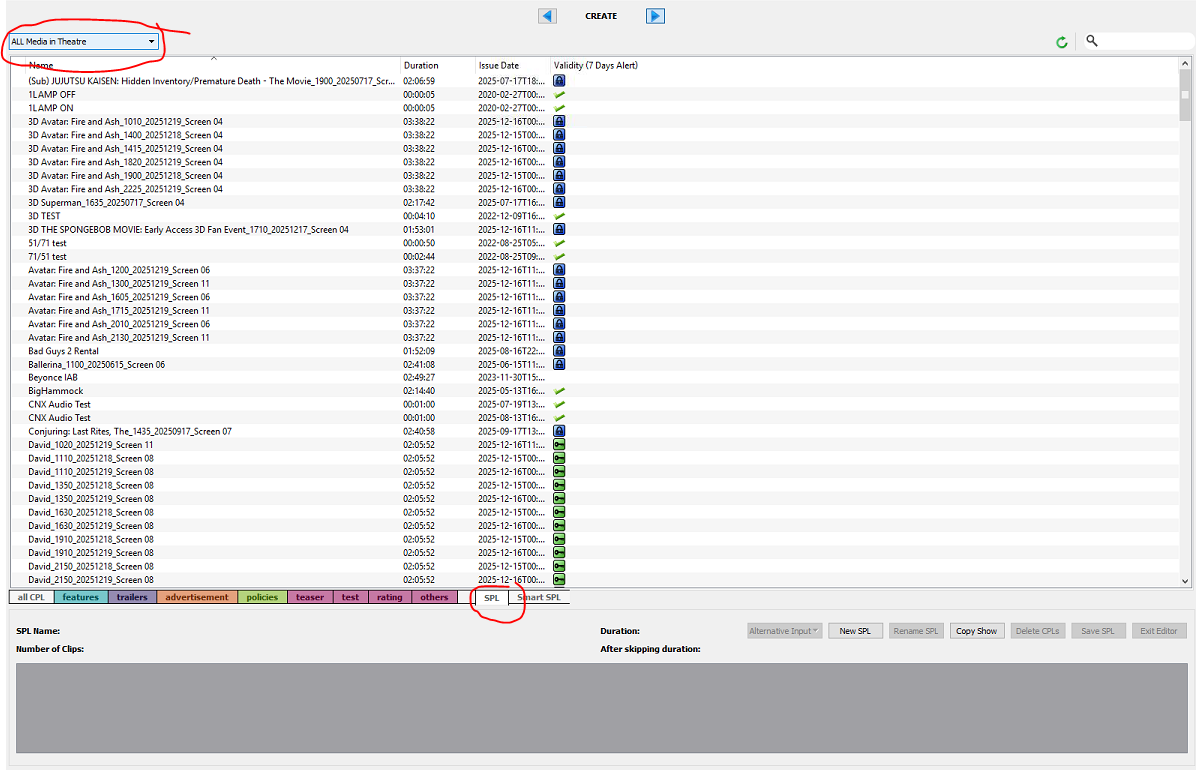
  1. On TMS go to the content manager view, and swap to create mode. Then click on SPL and make sure you're filtered to "all media in theatre"
b6103da78dadcadcdfe9f4eb0ac0694bcfa554ed82a08f8aa0187f842454d0281cd4e226ebb1c3fb?t=10553d08afc077d6c49c0e3b3e385151


bf237da04af5e64ff05bc0bb582c7e6bb0c4ec4f732042df27687df5fadbe733bd907d10dd8fdd64?t=44435171cb79290a3d6a5a963a834ea8

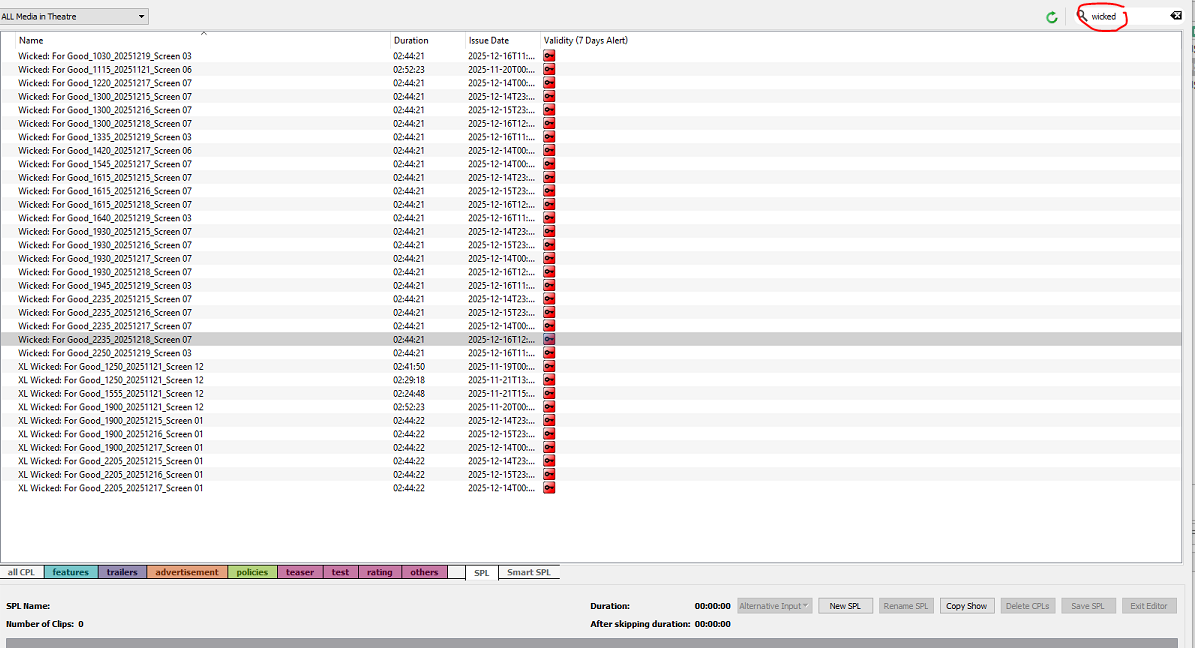
  1. Now, find the show you want to edit. In this example it's wicked. It doesn't matter what screen you copy from
b1a0ad2dde5c9854b97fbd5fad87615bfbff70ebb5cfafd01f01dabfa4394fc5cf87b1d59dd9d9fb?t=d1bd5009dbb97c356711807dd88113bc

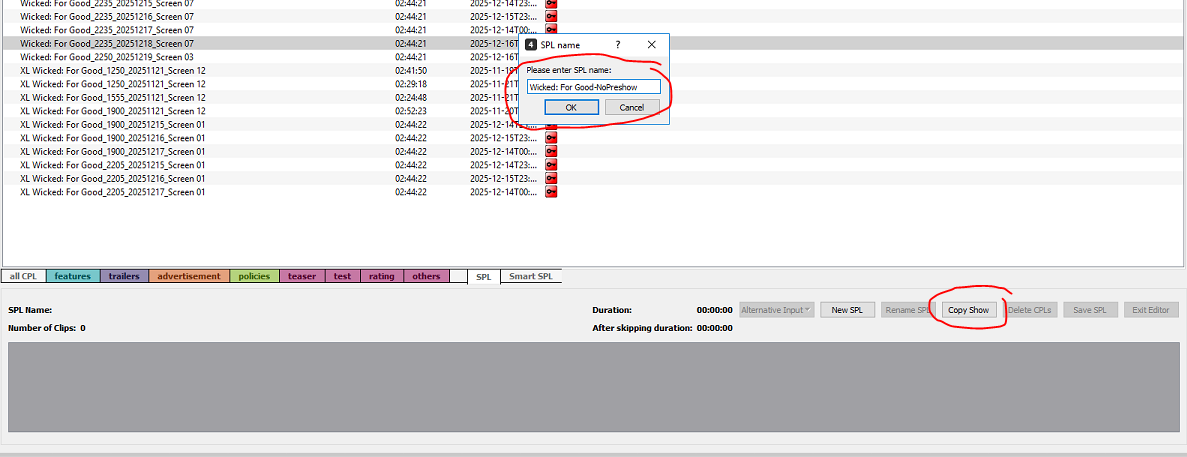
  1. Then you'll copy the show, and name it what you want.
574fdbfc9a41aec39c7cc1fcfe3abaac168399873b661711e81707e2d631ae6695b0f247ad86b8cc?t=caaa3bfb75cc0563e633ebe64c6d8d25

  1. Delete everything you don't want to play. Hold CTRL on your keyboard, select the CPLs to delete, then click delete CPLs (Always leave the black MOSs, if you delete one on accident don't save the SPL and restart the process)

69ba055822c36673969fa6803fa6896360288ab4563f100b9af896b2592daef919ef63b1aad12894?t=62ade5ae32d2bb3a4940e4c75fffb027

Should look something like this once done, we normally leave the Epic Coke Popcorn CPL in place even for theatre rentals.

5eebccdd4eb38adc0d0c7dabaac712a26176ef023557d02cdcb38db3c05a1265b6e9282fdbc1538a?t=5b184b899082bd3bf326b94e9d66e629

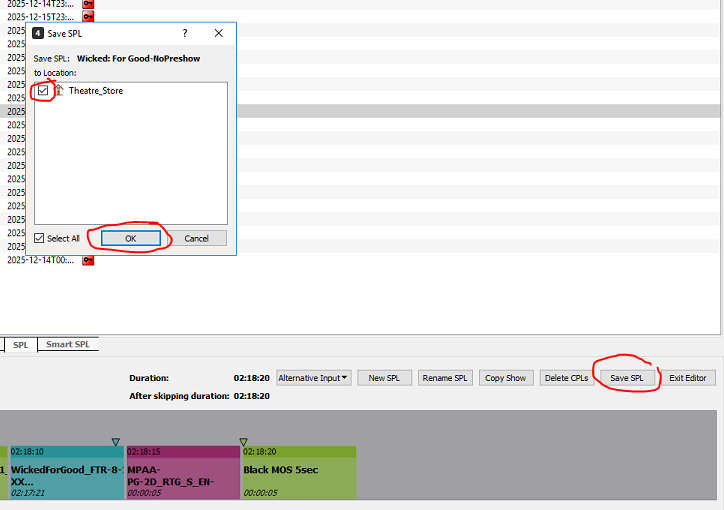
  1. Now you save, select theatre store, and select OK
c853a9ac2e25b26b58d750090255722f0986fe63238f1ccb35e41f25277f7fa393581070cb981954?t=d83dfcf70a47e891cd3c880c1f494564

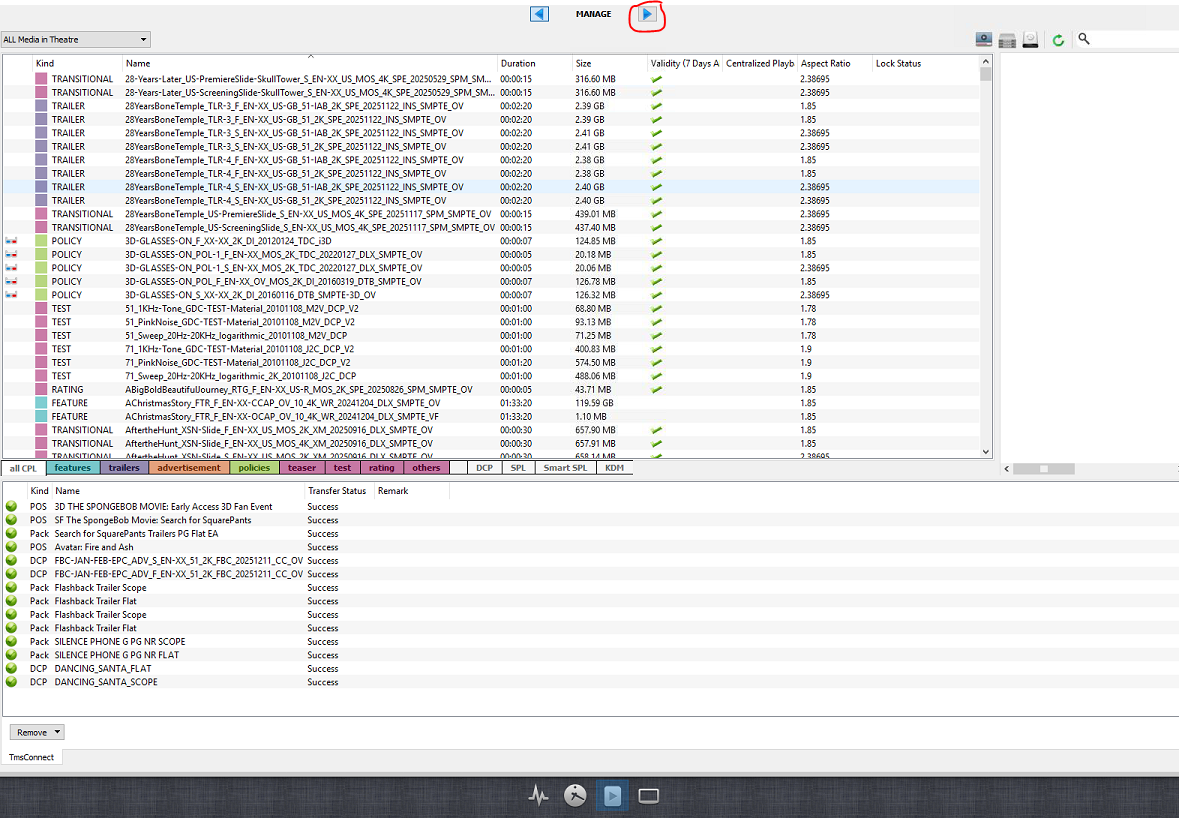
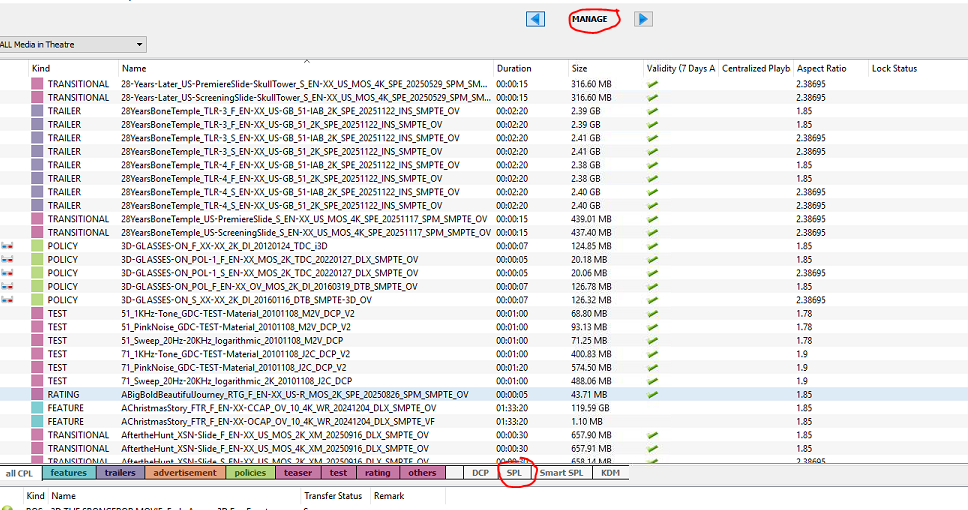
  1. Swap back to Manage at the top, and click SPL again
57f8a2396d3e30fe8774d4a3395da9f1c59c33b65563158700a2fd2c8ab3dd65432c3d47b08c0342?t=2427a565b554454b89fed7dc4752be37

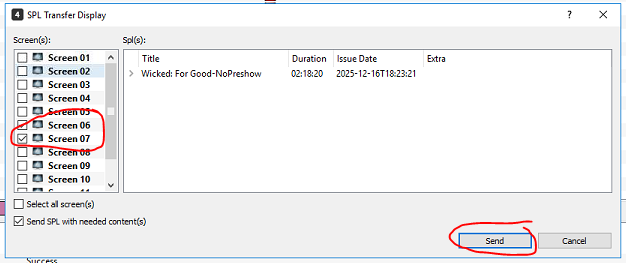
  1. Find your SPL, right click, and send it to the screens you want to play it on

c8928d03bec550a6bb852c5654f4f3d1d67287ef278c462445170e211409a3bf3ec45e3b666c9e44?t=ef12ee157f13d123a1ff13f0047d9ce9


9fca6684afa6300316e29fa91bb9b529c283885062473c196d328527904162db4ad7ff009299e9a4?t=3a51093392f8fa2fd89758e2260fe6fa

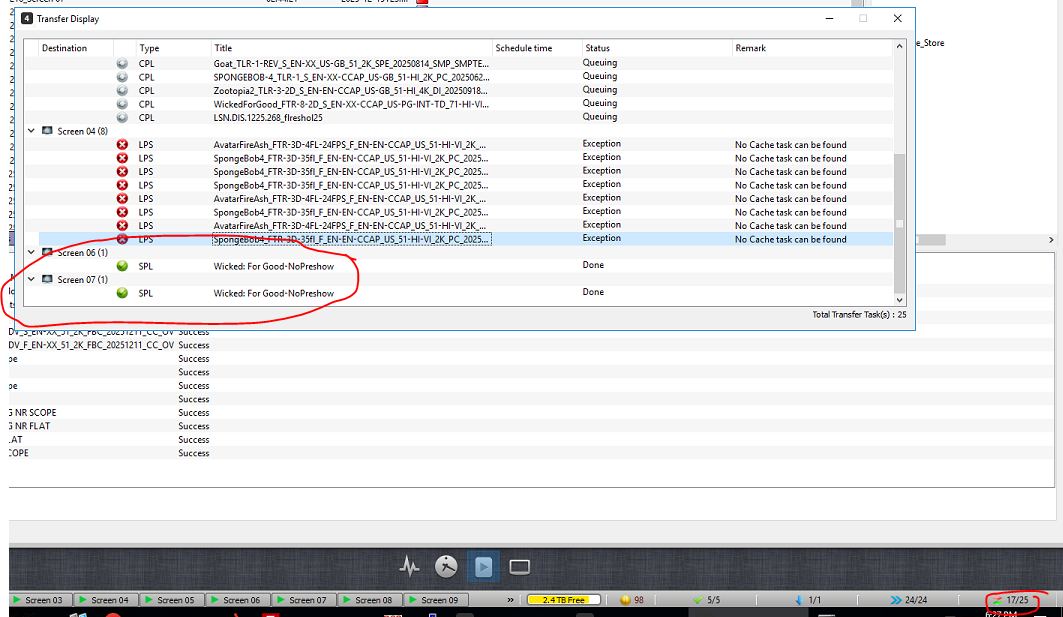
You can verify they sent on the transfer screen
14a3614be5413599a15116c709b32bbd9d7c06c434d8d2d5953485c1ba8c65e8ac1b065ea9fd5c13?t=1ced8e8cb9b69c92a2f388fcdf65fcf2

  1. Now do a sync on the screens (You could also sync all screens, but that takes a long time)
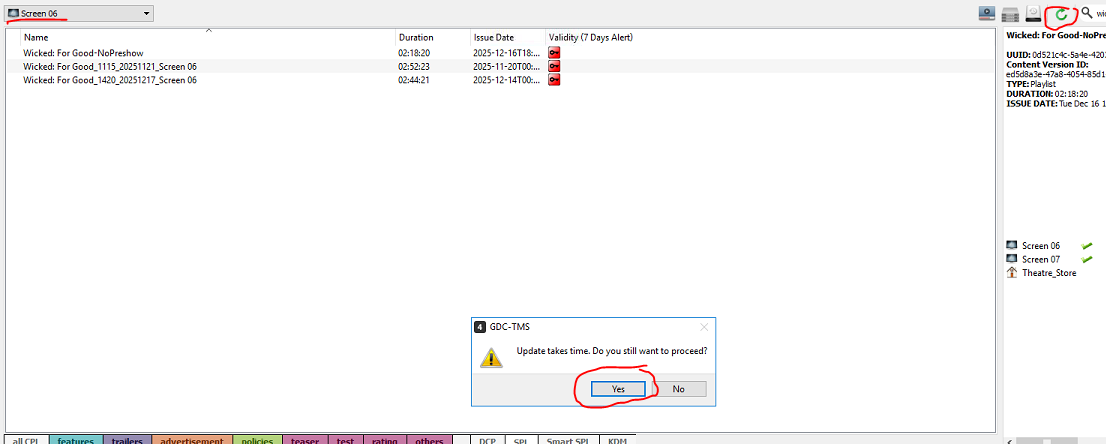
1d59495cce41bf1dd9ed9fd11349c35cb8eb29926c8325aa02a434c33f8ec65a24367792f630832f?t=da809cf0d91028d33bba60a92e943f77

  1. Now return to the schedule view and delete the shows you want to replace by right clicking on them
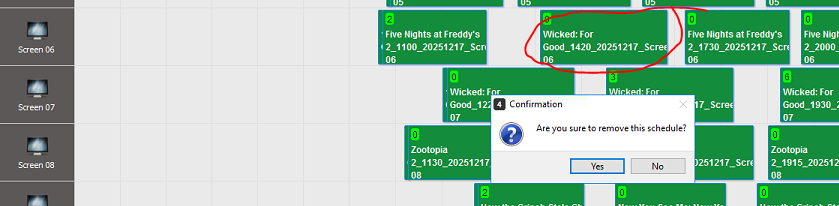
238ee4b9a5eac4e907652e81025e5917da76a70b82f8b42dd61600a0edcc3413cf5e88d2eeaa2a90?t=6cf3e1bd7dfe80134bea4e8ded71d764

  1. Then schedule it by selecting New - Then picking the desired screen, SPL, date, and time. Then clicking "Add"
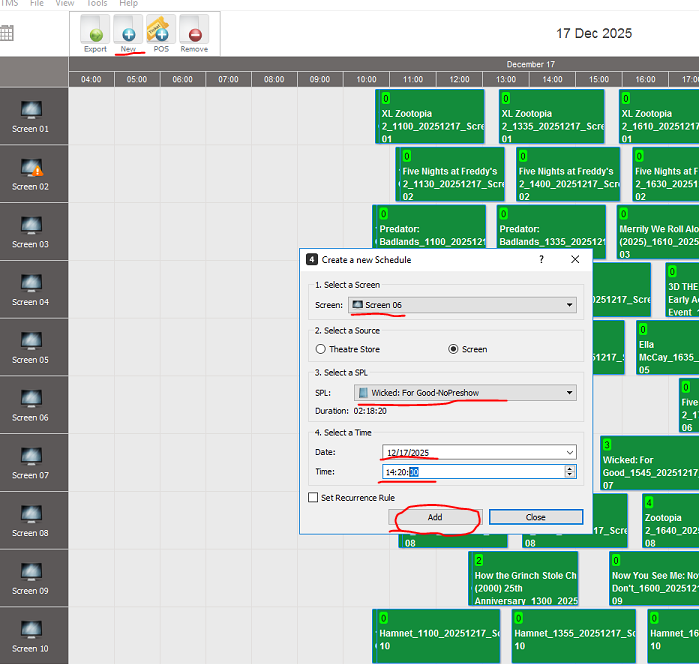
24bdddf6a3562a4f059219f401a561ec5a2fc23b9423b76f77170785d40d1706c5d3245dead8b41a?t=5d52a43eac4a08e8a2323fdca2a72564

Your custom show is now on the schedule!

41225cff960ed6abaf01fde60575c6b9188178831d47ba9ed52d2b1fb9f8fc97775ea8bd313b2a22?t=465d136f2e885aefa0fc7e7957aa9122


Share via
Did you find this article useful?  

Related Articles

© Epic Theatres